

To access our PoS App, it's necessary to create a new PoS user. This login is solely for the purpose of making requests within the PoS App and cannot be used to access your main account. This setup is designed to ensure that your employees can configure the PoS app on their devices without requiring access to your main account credentials.
Before creating a POS user, ensure you have created a Profile and selected it in your dashboard.
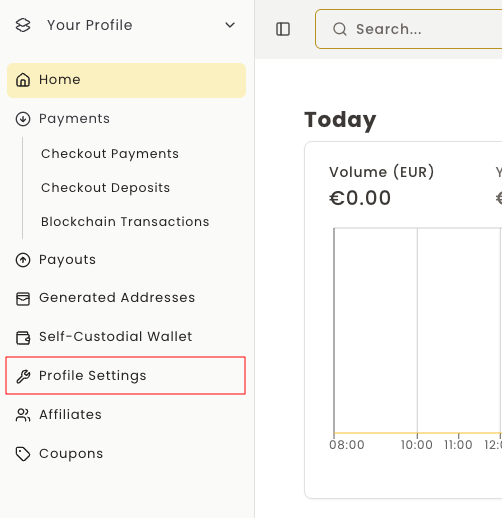
Step 1: Access Profile Settings
First in the Dashboard select the "Profile Settings".
Step 2: Navigate to POS Users
Being in your Settings (with a profile selected), click Point of Sale (PoS) Users.

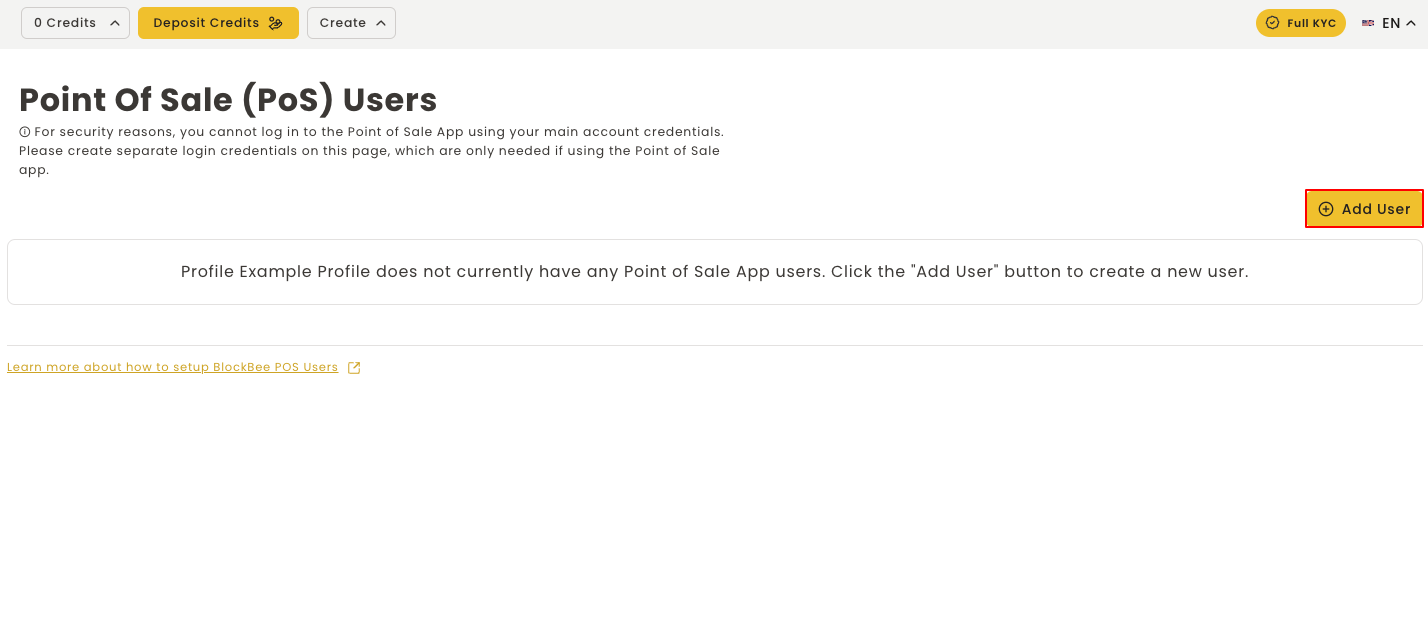
Step 3: Add New User
In the following screen you will need to click Add User.
Step 4: Configure User Details
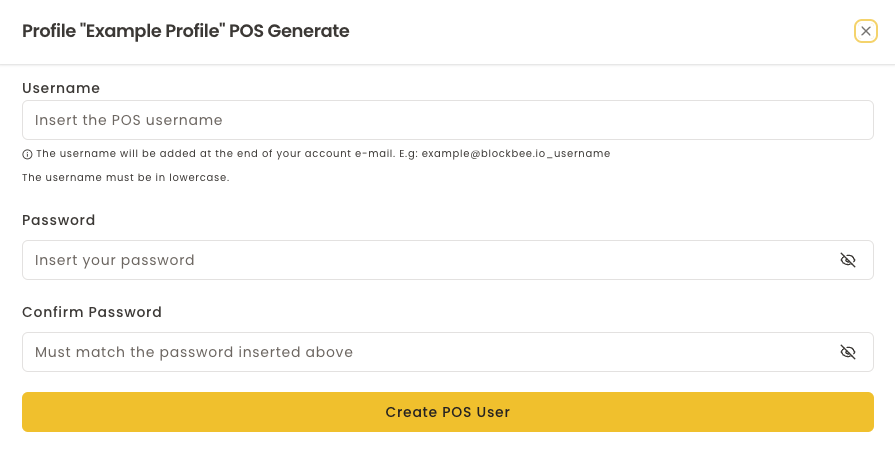
To create a user you will need to insert a username and a password.
Username
Insert the username here. This will be added at the end of your account e-mail like the following example:
[email protected]_insertedusernamePassword
Insert the user password here. Must be unique and will be used only to login as this user.
Confirm Password
Confirm the inserted password.
Finally, to finish creating the POS User click Create POS User.
Using the POS User
Your POS user is now created! Employees can use the generated credentials (email with username suffix and password) to log into the BlockBee POS App without accessing your main account.
Security Tip: Each employee should have their own POS user for better tracking and security management.