

First you need to install our Magento Extension in your Magento Store.
Prerequisites
Before configuring the BlockBee extension, ensure you have:
- Magento installed with admin access
- Installed the BlockBee Magento Extension
- A BlockBee API Key
- Wallet addresses configured in your BlockBee Dashboard
Configuration Steps
Step 1: Access Stores Menu
After all is set, go to the Magento Administration area and click Stores.
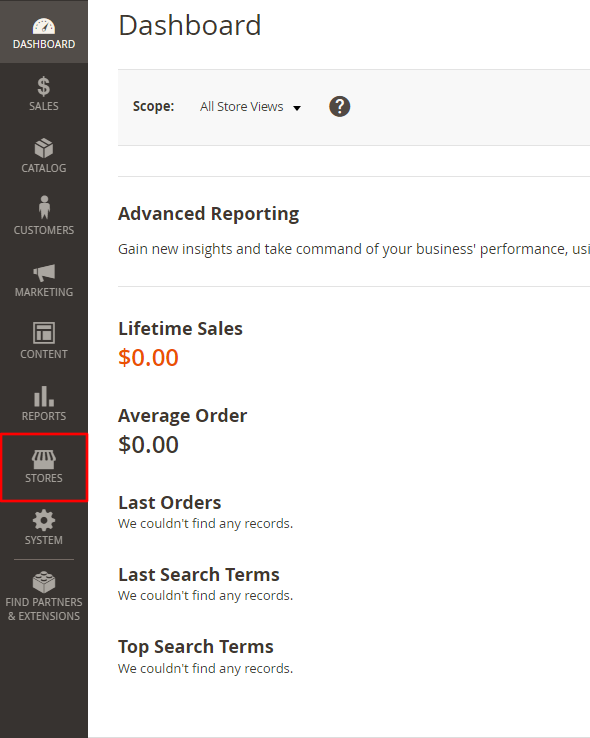
Step 2: Open Configuration
In the menu click Configuration.
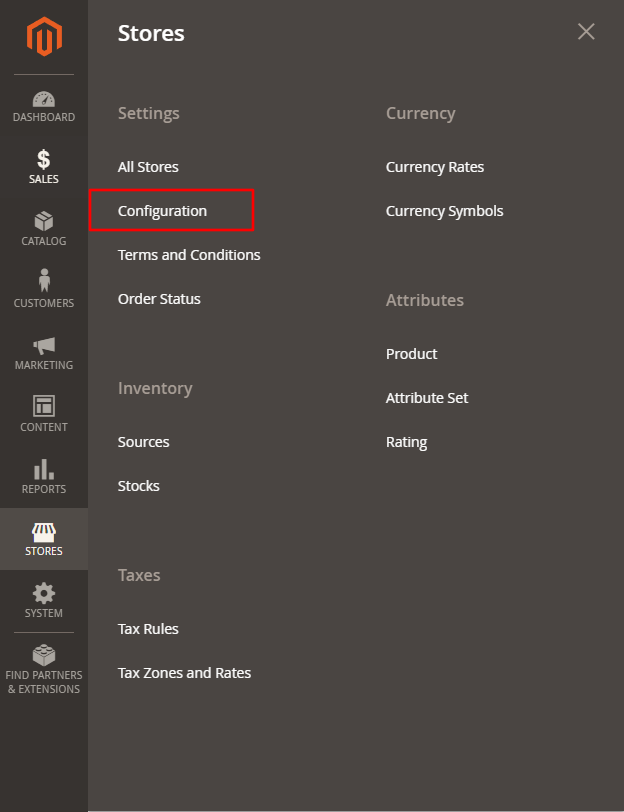
Step 3: Expand SALES Menu
Click SALES to show a dropdown menu.
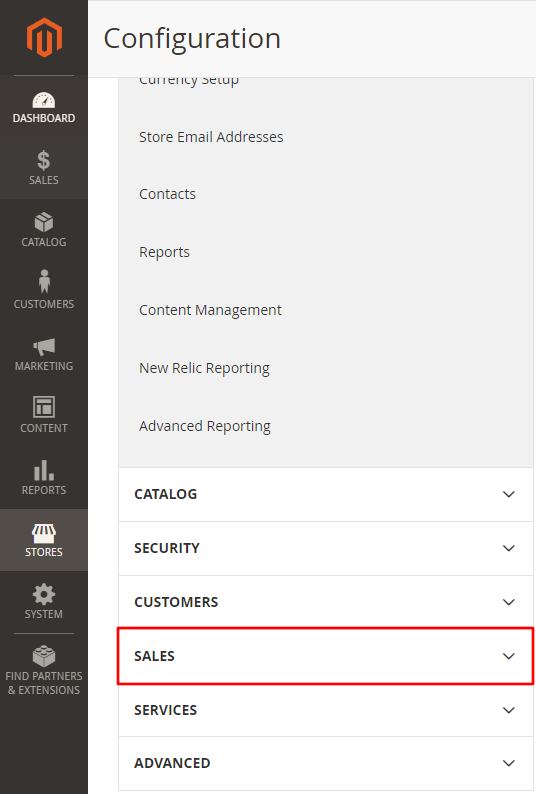
Step 4: Navigate to Payment Methods
Then, click Payment Methods.
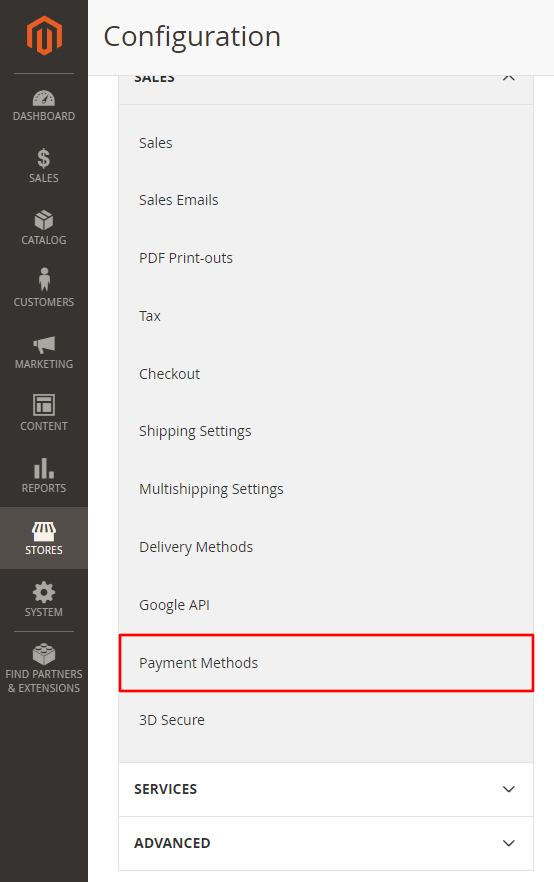
Step 5: Locate BlockBee Section
In the Payment Methods page scroll to the BlockBee area, where you will set up our extension.
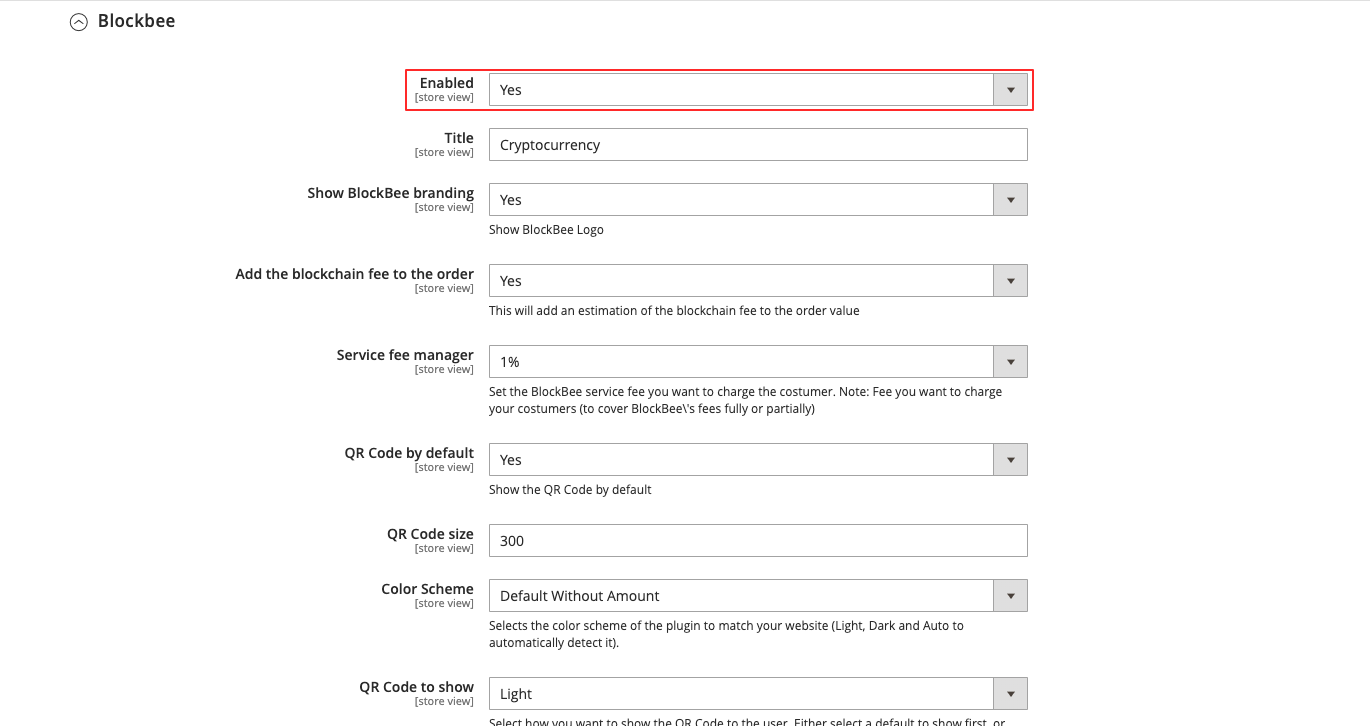
Step 6: Enable the Extension
It's important to enable the extension setting the Enable option to "Yes". Feel free to set up the remaining settings as you wish.
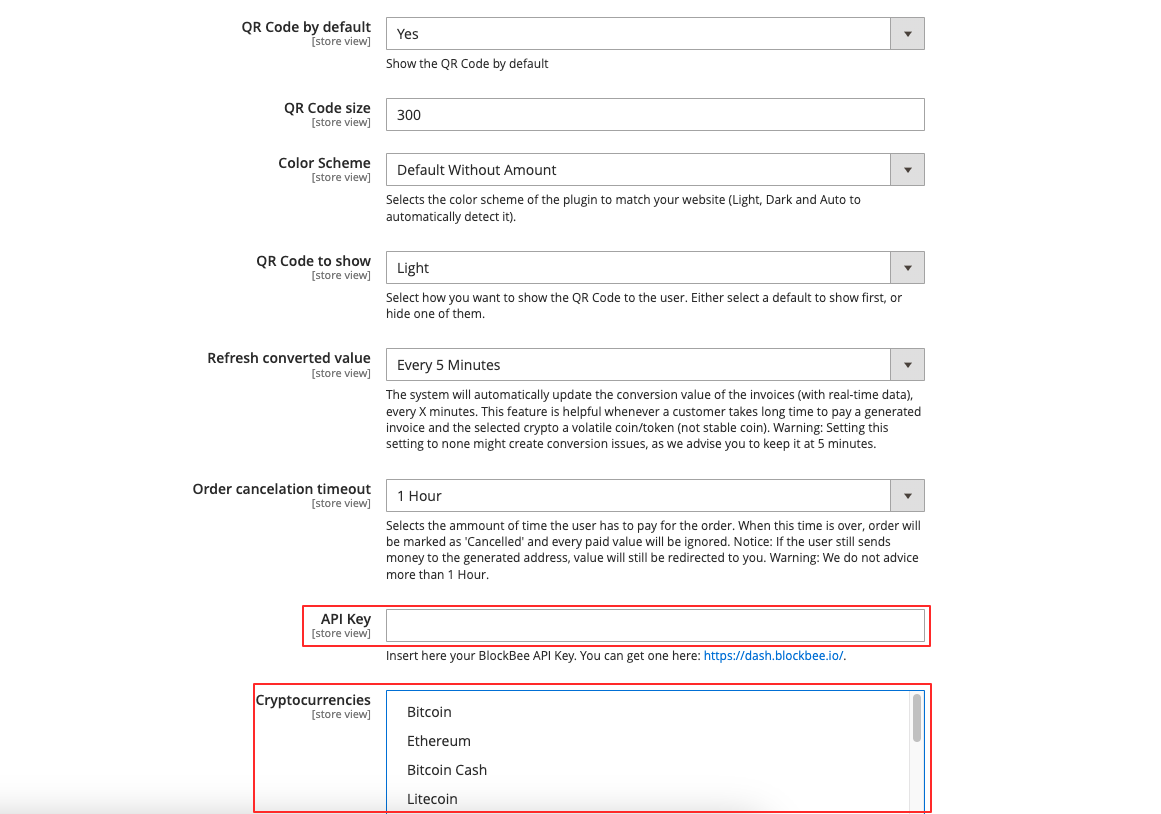
Step 7: Configure API Key and Cryptocurrencies
Paste your API Key that you got from BlockBee Dashboard and select the cryptocurrencies you want to accept (CTRL + click on Windows and CMD + Click on MacOS, to accept multiple currencies). Make sure you also did set the address in the Dashboard otherwise the extension will throw errors in the payment.
Important: Ensure your wallet addresses are configured in the BlockBee Dashboard for each cryptocurrency you select, otherwise the extension will throw errors during payment processing.
Step 8: Save Configuration
Finally, Save the settings and your Magento Store is now ready to accept cryptocurrencies.
Configuration Complete!
Congratulations! Your Magento store is now ready to accept cryptocurrency payments through BlockBee. Customers will be able to select crypto as a payment method during checkout.
Remember: Ensure your wallet addresses are properly configured in the BlockBee Dashboard for each cryptocurrency you've selected.
Next Steps
- Test the checkout process to ensure everything works correctly
- Configure payment settings in your BlockBee Dashboard
- Set up exchange automation if needed
- Monitor your transactions in the BlockBee Dashboard