

In this article, we will guide you through setting up your Payment Settings. The Payment Settings will be valid in all BlockBee's services where you're using this Company's API Key (PoS, Checkout, etc…). Be aware that our e-commerce plug-ins won't be using these settings.
Step 1: Select Profile and Access Settings
Before starting the process, you must ensure you have the right Profile selected. If you have not yet created a Profile, you will need to do so before proceeding to the settings. If you have Selected All, these options will not show. Then you must select the Settings button.
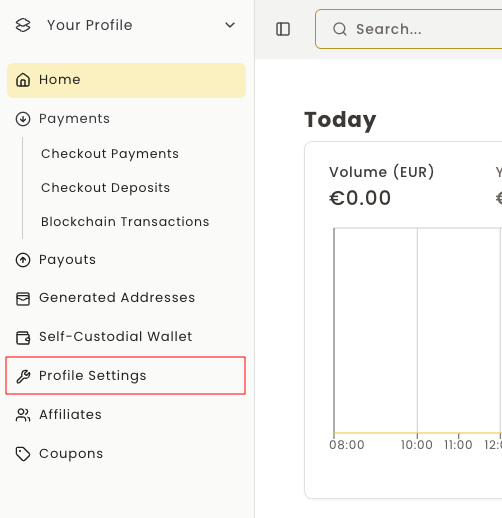
Step 2: Navigate to Checkout/PoS Settings
If you have any Profile selected, the options related to the selected Profile will appear. Then, select Checkout/PoS Settings.

Step 3: Configure Payment Settings
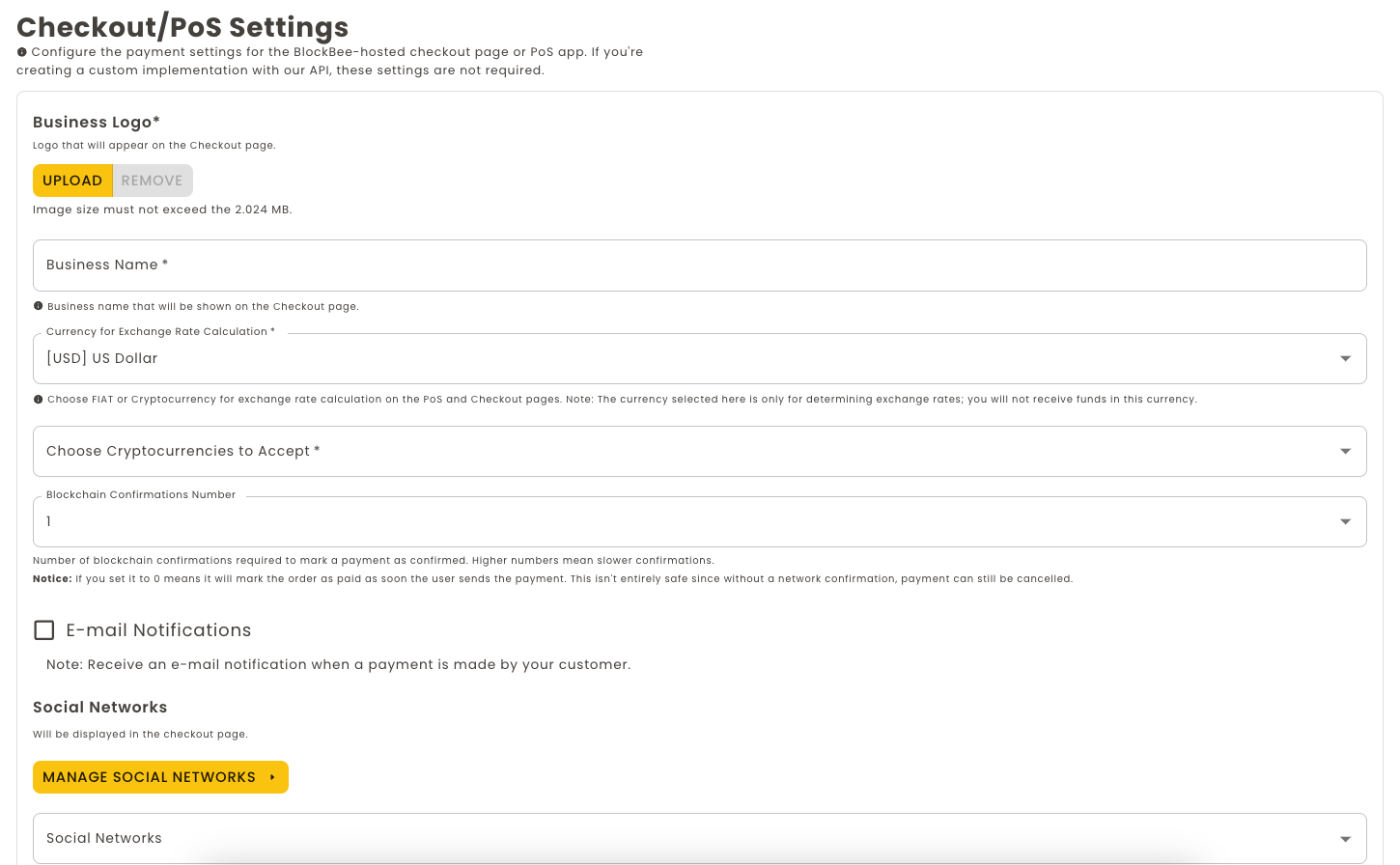
In the Payment Settings section you will find the following settings:
Basic Information
Business Logo: Upload the logo for your business/company that you would like to use in our services.
Business Name: Enter the name of your business or company that you would like to display.
Currency and Cryptocurrency Settings
Currency for Exchange Rate Calculation: This can be either a FIAT currency or a cryptocurrency (e.g., USDt) used for conversions within BlockBee services. For instance, in the POS App or Checkout, this currency will serve as the base value for converting to your selected cryptocurrencies.
Choose cryptocurrencies to accept: Select the cryptocurrencies to use in our service. It is possible for you to re-order them as you need.
Confirmation Settings
Blockchain confirmation number: Set the number of network confirmations needed to mark a payment as paid. Higher the number, the slower the payment confirmation will be.
Important: Setting it to 0 will mark the payment as paid almost instantly, but it might be unsafe since network hasn't confirmed it yet. Use it at your own risk.
Payment Tolerance
Payment Tolerance (%): Percentage tolerance to prevent rejecting payments that are slightly incomplete. For example, if set to 5% and the requested amount is $100 USDT, payments of $95 USDT or more will be accepted as complete and a webhook will be sent.
Note: The webhook will contain the actual amount paid by the user, not the requested payment value.
Service Fees
Payment Service Fee Surcharge: If enabled, BlockBee's service fee will be added on top of the order total and charged to the customer.
Payment Blockchain Fee Surcharge: When enabled, the estimated blockchain fee required to forward funds will be added to the total.
Save Your Settings
When you're done configuring all settings, click click Save.
Your payment settings are now configured and will apply to all BlockBee services using this Profile's API Key!