

The BlockBee plugin extends WooCommerce, allowing you to get paid in crypto directly on your Store, with a simple setup and no sign-ups required.
In this page we will guide you throughout the configuration and installation of our official WooCommerce Plugin.
Prerequisites
Before installing the BlockBee plugin, ensure you have:
- WooCommerce installed and activated on your WordPress site
- A BlockBee API Key
- Wallet addresses configured in your BlockBee Dashboard
Installation Steps
Step 1: Navigate to Plugins
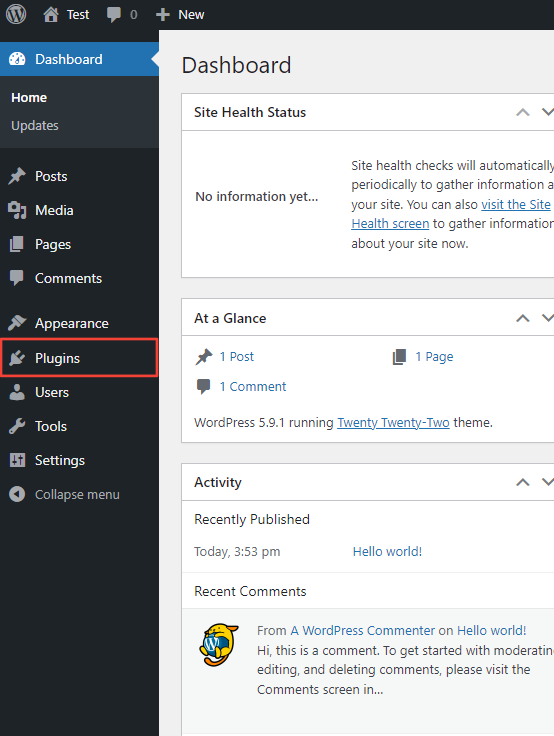
First you need to have WooCommerce installed. Then you go to Plugins.
Step 2: Add New Plugin
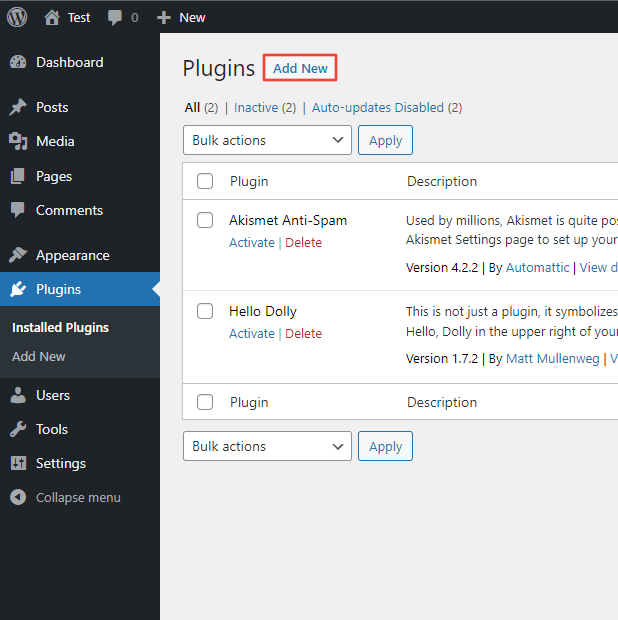
In the Plugins page click the Add New button.
Step 3: Search and Install
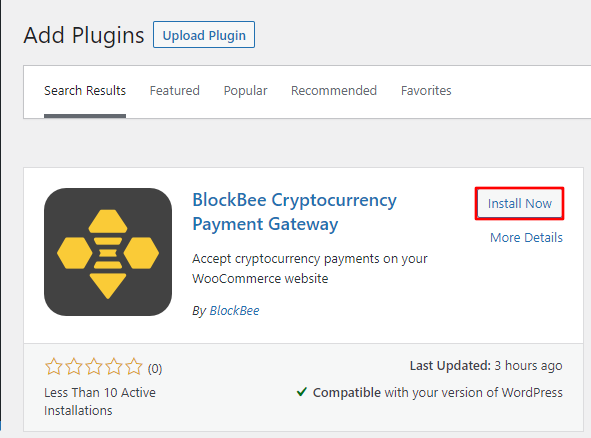
Type "BlockBee" in the search input and when our plug-in appears in the search result, click Install Now. Then just wait for WordPress to finish installing it.
Step 4: Activate the Plugin
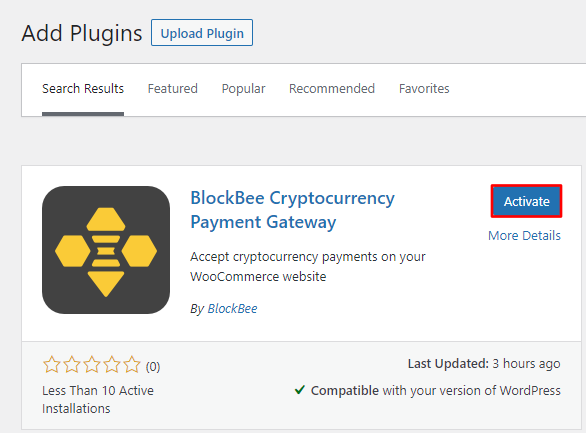
When WordPress finishes installing BlockBee plug-in, click Activate.
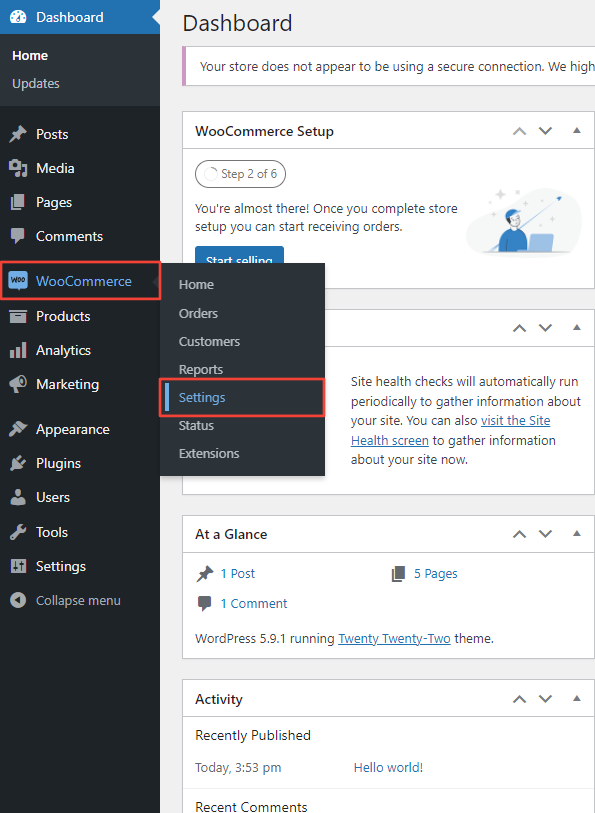
Step 5: Access WooCommerce Settings
Then go to WooCommerce and click the Settings link.
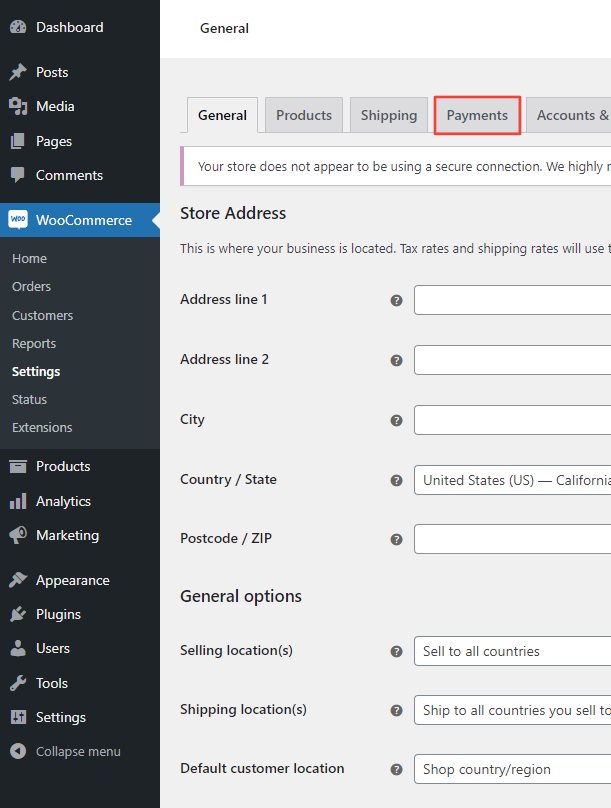
Step 6: Navigate to Payments
In the WooCommerce Settings page click on the Payments tab.
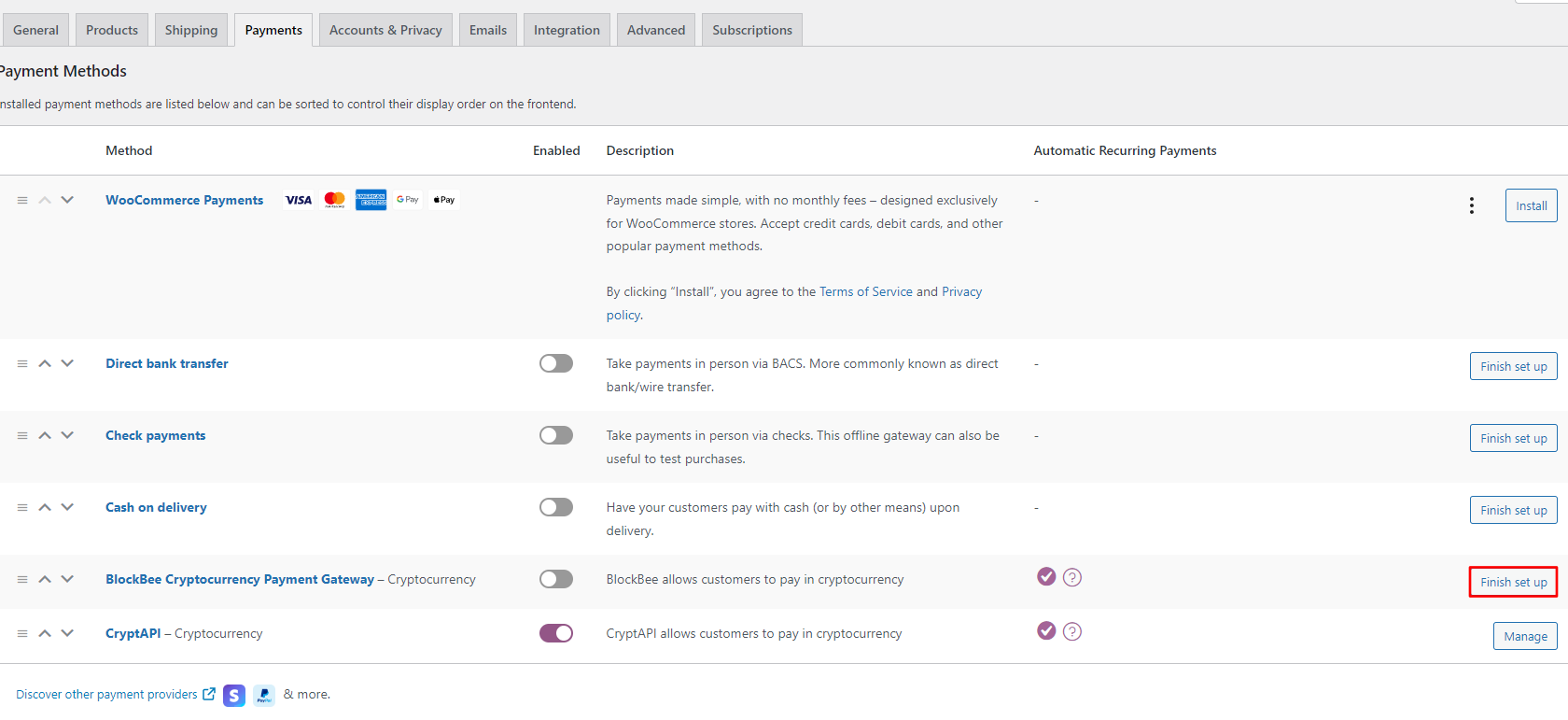
Step 7: Finish Setup
Here you will have to scroll to "BlockBee Cryptocurrency Payment Gateway" and click Finish set up. This action will take you into the plugin settings where you will finish the configuration.
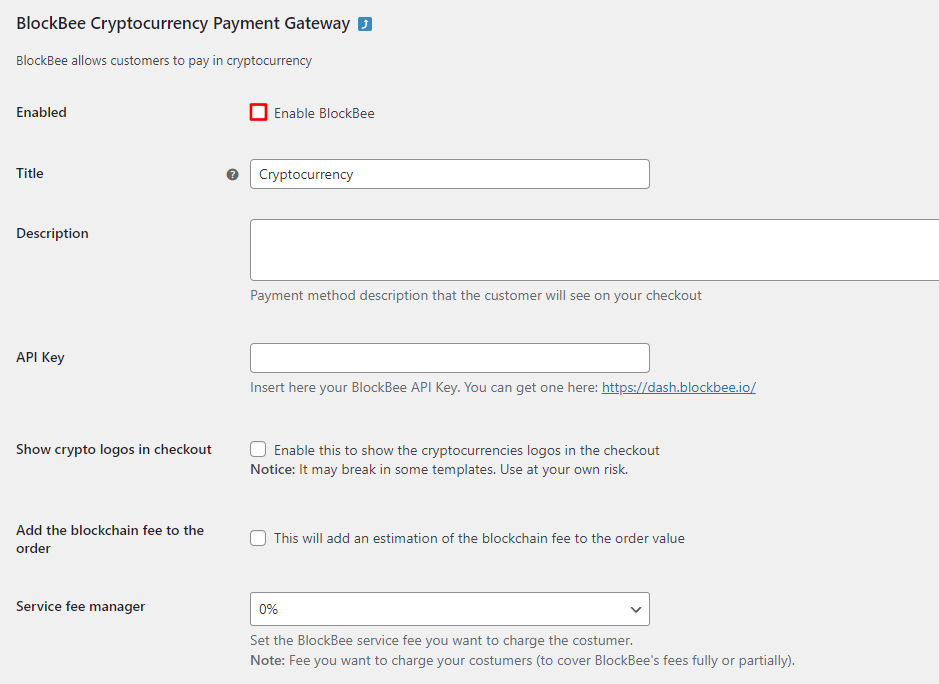
Step 8: Configure API Key
Make sure the checkbox is selected to enable BlockBee plugin and that you get a valid API Key from our dashboard and paste it in the API Key field. This is mandatory, failing to do so will result in the plug-in to error out when trying to make an order.
You can also play around the settings a bit to make our WooCommerce plug-in fit your needs.
Important: The API Key is mandatory. Without a valid API Key, the plugin will fail when customers try to make orders.
Step 9: Select Cryptocurrencies
Finally you must select the cryptocurrencies you want to accept in your WooCommerce store. You must make sure your wallet addresses are set in the dashboard, otherwise the plug-in will fail to make orders.
Tip: You can select multiple cryptocurrencies with CTRL + click on Windows, or CMD + click on Mac.
Configuration Complete!
Congratulations! Your WooCommerce store is now ready to accept cryptocurrency payments through BlockBee. Customers will be able to select crypto as a payment method during checkout.
Remember: Ensure your wallet addresses are properly configured in the BlockBee Dashboard for each cryptocurrency you've selected.
Next Steps
- Test the checkout process to ensure everything works correctly
- Configure payment settings in your BlockBee Dashboard
- Set up exchange automation if needed
- Monitor your transactions in the BlockBee Dashboard